Legend
+ New feature
o Enhancement
!! Bug fix
Version 6.2.2.3300 (December/09/2018)
+ Added the Google Native and Firefox Native options in the installer
o Fixed some crash bugs
Version 6.2.1.3200 (March/25/2018) !!! UNICODE SUPPORT FINALLY IS HERE !!!
+ Added Chrome browse extension support
o Fixed HTTPS issue to download the stopped videos
o Fixed HTTPS issue to display HTTPS URL
Version 6.1.1.3100 (December/29/2017) !!! UNICODE SUPPORT FINALLY IS HERE !!!
+ Added UNICODE download support
+ Added 64bit download support
+ Added Firefox browse extension support
- Remove IE Plugin
Version 5.3.0.2712 (February/04/2016) !!! HTTPS SUPPORT FINALLY IS HERE !!!
+ Added HTTPS download support
o Optimize the speed of opening web page
o Improved web video detection algorithm
Version 5.2.0.2429 (April/21/2015)
+ Added new convert toolbar button
+ Added URL tooltip and Copy URL context menu item to the browser tab
o Updated the YouTube Download format auto-selection algorithm
!! Fixed the Global Speed display bug
Version 5.1.0.2224 (September/21/2014)
+ Added IE and Firefox addons
o Update Firefox addon for new Firefox versions
o Update cloud videos detected from IE and Firefox addons
!! Fixed UI bugs under lower screen resolution
!! Fix command line bugs of starting up from addons
Version 5.0.0.2145 (July/4/2014)
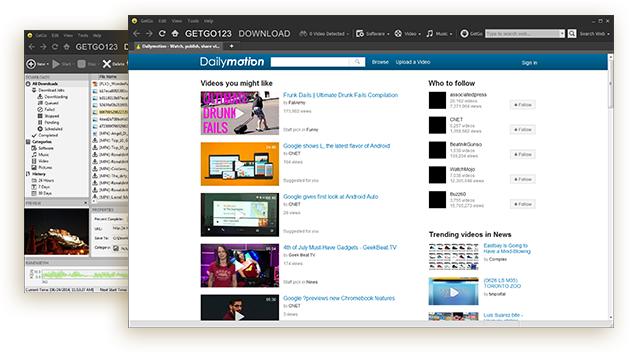
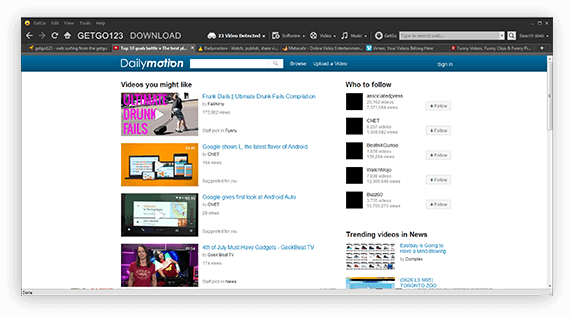
+ Added GetGo123 mode with an embedded web browser
+ Added navigation website www.getgo123.com
+ Added content search, website browse, download and video detected one-stop opration
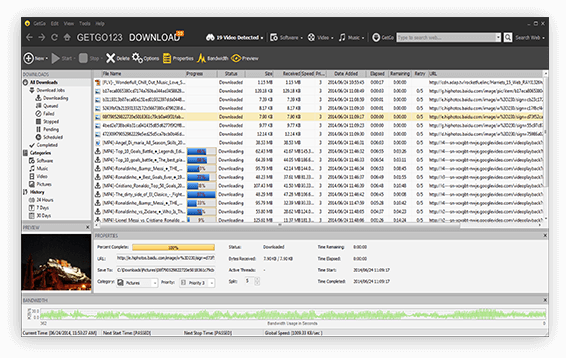
+ Added brand new GUI style
o Updated cloud detected of video
o Remove IE and Firefox add-ons
!! Fixed some GetGo 4 bugs
Version 4.9.0.1982 (January/24/2014)
o Updated to be compatible with latest YouTube site change (January, 2014)
o Removed Ask related components
o Updated Installer to make Firefox and IE integration optional during installation
o Updated Browser Integration to be compatible with Firefox 25 & IE 11
Version 4.8.5.1687 (March/25/2013)
o Updated to be compatible with latest YouTube site change (February, 2013)
Version 4.8.4.1665 (February/11/2013)
o Updated to be compatible with latest YouTube site change (December, 2012)
o Updated Firefox Integration to be compatible with upcoming Firefox 19.0
Version 4.8.3.1545 (October/15/2012)
+ Revamped YouTube support to handle HTTPS URLs as well as the new format map that got changed in Septmember, 2012
+ Added Generic MP4 video detection in GetGo Toolbar in IE
!! Fixed incorrect selection of video format when doing automatic video format selection on YouTube
Version 4.8.2.1450(July/11/2012)
o Updated with new version of Ask Toolbar
o Updated Firefox Integration to be compatible with Firefox 13.0
Version 4.8.2.1346 (March/25/2012)
o Enhanced shell integration
o Updated with new version of Ask Toolbar
o Updated Firefox Integration to be compatible with upcoming Firefox 11.0
Version 4.8.2.1233 (December/11/2011)
+ Added ability to select preferred video format for YouTube Video Download
o Updated Firefox Integration to be compatible with Firefox 8.0
Version 4.8.1.1171 (September/26/2011)
+ Added ability to select preferred video format for YouTube Video Download
o Updated Firefox Integration to be compatible with upcoming Firefox 7.0
Version 4.8.0.1123 (August/05/2011)
+ Added webM support for YouTube
+ Added French language support
+ Added support for setting default priority for a new download
o Updated to be compatible with latest YouTube site change on August 3, 2011
o Updated GetGo integration to be compatible with Firefox 6 new release
o Updated GetGo Toolbar for Firefox to detect generic MP4 videos
Version 4.7.3.1085 (July/3/2011)
o Updated GetGo integration to be compatible with Firefox 5 new release
Version 4.7.2.1004 (April/22/2011)
+ Added IE9 document mode auto-detection and handling
+ Added support for Firefox 4.0
o Moved the "Download This Video" button to a more visible position in the YouTube Video pages
!! Fixed GetGo Toolbar video detection feature in IE9
Version 4.7.1.975 (March/11/2011)
o Improved German Translation in various components
!! Fixed YouTube download !! due to the changes casued by YouTube update of its video pages on March 3, 2011.
Version 4.7.0.930 (January/28/2010)
+ Added full German language support
+ Main ListView Header now fully configurable/customizable via right click context menu
o Improved GUI dialogs to make GUI look properly with German language
!! Fixed YouTube download failure when clicking detected YouTube videos in GetGo Toolbar for both IE and Firefox due to recent YouTube service changes
!! Fixed download using Proxy with username and password authentication
!! Fixed GGDM crash when click Cancel button on New Download Dialog in URL detecting
!! Fixed YouTube download failure for some specific URLs
Version 4.6.1.775 (November/02/2010)
+ GetGo Mozilla Module (i.e. Firefox Integration) now supports multi-languages
o Updated with new version of Ask Toolbar
!! Fixed the issue of stopping scheduled re-downloads ending in incorrect download state
!! Fixed the issue of download scheduler option not being saved when the app restarts
Version 4.6.0.739 (September/28/2010)
+ Added customizable file extension for automatic download categorization
+ Added new "Category" option tab into Options Dialog
o Updated default categories file extension list
o Enhanced YouTube URL detection and extraction
!! Fixed scheduler's failure to recur every day
!! Fixed allow unfinished scheduled downloads to return to SCHEDULED state
!! Fixed close getgo after completion option
!! Fixed the ability to manually start PENDING or SCHEDULED downloads
!! Fixed incorrect download state when trying to Re-Download with the global option of Download Behavior as "Start Manually" and "Start Scheduled"
!! Fixed remove extra line termination chars when pasting URL into GetGoDM
!! Fixed category download directory incorrectly updated when RDD is changed and was system root directory (e.g. C:\)
Version 4.5.2.696 (August/16/2010)
!! Fixed GetGo Toolbar unable to register in IE of Windows 7 / XP
Version 4.5.2.692 (August/12/2010)
o Updated 1-click YouTube download logic to handle recent YouTube changes
o Enhanced video detection in IE for Metacafe.com to handle HD videos
o Improved URL extraction algorithm for Leech Download
!! Fixed downloaded file name containing html code
Version 4.5.1.655 (July/06/2010)
+ Added handling of new YouTube video page URL using "#!" instead of "?". See more @ http://blog.arpitnext.com/2010/03/youtube-video-page-url-structure.html
+ Added video detection support for MegaVideo.com and Break.com
o Improved IE integrated 1-click YouTube download button loading logic
o Enhanced GetGo Toolbar GUI
Version 4.5.0.576 (April/18/2010)
+ Added background ShellIcon fetch thread as well as a ShellIcon cache to speed up drastically on program startup when there are many downloads.
+ Added Twitter, Facebook and YouTube links to the Help menu
o Enhanced main GUI such that it will no longer sticky when scrolling up and down even if there are many URLs/downloads.
!! Fixed - YouTube Major Upgrade on April 1, 2010 resulted 1-Click Download button to disappear from YouTube video pages.
!! Fixed - Installer DPI problem when installing onto system with higher DPI
!! Fixed - Firefox and IE Addon handling of the new YouTube video page layout
Version 4.4.5.502 (February/02/2010)
+ Added IE8 as HTTP referrer;
o Enhanced Firefox integration to provide more reliable video detection;
o Enhanced main listview scrolling with shell icon caching;
o Enhanced installer with more detailed component list;
!! Fixed - Firefox 3.6 integration installation problem due to its removable of one of its command line options;
!! Fixed - atl.dll and manifest mismatch caused IE integration fail to install on many systems;
!! Fixed - Invalid chars in "Save To" edit box resulting missing downloaded file;
!! Fixed - Options dialog "Sounds" tab didn't reset properly when "Reset to Default" is clicked.
Version 4.4.1.435 (November/26/2009)
+ Added Full HD (1080P) YouTube video support
+ Added Facebook video detection and download support
+ Added Option to allow auto-updating Category Download Directory (CDD) on Root Download Directory (RDD) change
o Enhanced 1-Click YouTube in-page toolbar with HQ and HD video support;
o Enhanced video detection of MySpace, Vimeo, Metacafe and DailyMotion with HQ video support
o Enhanced YouTube video link detection
o Enhanced antivirus scanning parameter with %file% support
!! Fixed - GetGo Toolbar unable to register in IE sometimes
!! Fixed - Missing video file after downloading due to bad chars contained in video page title
!! Fixed - Download Behavior option not being saved
Version 4.3.0.382 (September/29/2009)
!! Fixed IE crash on exit;
+ Added auto-resume on stopped downloads at startup as an option;
+ Made auto-categorize based on file extension as an option;
+ Added .iso and .msi extension handling;
o Removed image format interception inside web browser integration to smooth the workflow;
!! Fixed installer overwriting some user options when install over existing copy;
!! Fixed GetGo crash on exit when using left mouse click on the system tray icon;
!! Right click context menu on Main GUI now opens the correct folder containing the downloaded file;
!! Cleaned up some resource exception on exit;
!! Fixed force exit prompting dialog always showing up if file menu's Exit menu item is selected.
Version 4.2.2.350 (August/28/2009)
+ Re-worked YouTube 1-Click Download Feature;
+ Added Vimeo.com with HD support!
+ Added large file (2GB or more) download ability;
o Greatly reduced large file download starting latency;
o Improved algorithm for faster download;
o Enhanced Leech Download with auto category assignment.
Version 4.2.1.309 (July/17/2009)
o Improved handling of DailyMotion video URLs
!! Fixed YouTube download failure in both IE and Firefox due to YouTube's recent addition of new flash parameters
!! Fixed DailyMotion capture in both IE and Firefox
!! Fixed YouTube capture failure on some videos with long video url
!! Fix Google video capture failure in FireFox
Version 4.2.0.287 (June/25/2009)
+ Added Internet Explorer 8 Support.
+ Added ability to capture YouTube HQ (High Quality) and HD (High Definition) video in either FLV or MP4 format.
+ Added Dynamic Multi-Language Support.
o Improved GetGo's IE/Firefox integration with YouTube.com.
o Improved Handling of YouTube Video with Title containing Multi-byte chars.
o Improved Program's Error Recovery Ability.
!! Uninstaller auto-closes Firefox to avoid failure when removing Firefox Addon during uninstallation.
Version 4.1.1.201 (March/27/2009)
o Enhanced GUI workflow for main listview default selection.
o Enhanced HTTP handling of web server resume support.
o Enhanced Main GUI button state according to the selection in the main listview.
o Removed FLV and Youtube video download split limitation
o Updated GUI library
!! Fixed installer failure on removing Firefox Addon during uninstall
!! Fixed GetGo Toolbar for Firefox unable to intercept videos right after installation.
!! HTTP handling fixed issues when downloading from Amazon S3, Google Picasa.
!! Improved on application launch error during system startup handling.
Version 4.1.0.179 (February/23/2009)
+ New GetGo Toolbar - for both IE and Firefox.
+ New GetGo Toolbar - Flash Video Detection: Supports not only YouTube, but also Myspace, Myspace, Google Video, MetaCafe, DailyMotion, iFilm/Spike and more.
+ New GetGo Toolbar - Flash Video Detection: Supports ANY web sites with embedded FLV video.
+ New GetGo Toolbar - Flash Video Detection: Supports capturing video title with Multi-byte chars (such as Chinese/Japanese).
+ New GetGo Toolbar - Flash Video Detection: Selecting a detected video in the GetGo Toolbar downloads it automatically using GetGo Download Manager.
+ Auto Download Password Selection - When downloading files from a site that requires a username/password, GetGo will now automatically select one if there is a matching domain.
o New GetGo Toolbar - Enhanced Toolbar Search: Images and Videos Shortcut Search Buttons.
o New GetGo Toolbar - Enhanced Toolbar Search: Support Multi-byte char (such as Chinese/Japanese) search terms.
o Firefox integration enhancement - Right Click Context Menu to Download URL or Download All.
o Firefox integration enhancement - Integrated into SaveAs download dialog of Firefox.
o Enhanced the Search Toolbar in GetGo Main GUI - Images and Videos Shortcut Search Buttons.
o Enhanced the Search Toolbar in GetGo Main GUI - Support Multi-byte char (such as Chinese/Japanese) search terms.
!! Fixed a few bugs related to GetGo launch failure making it more fault tolerant.
Version 4.0.1.95 (November/18/2008)
o Added information dialog upon clicking YouTube video download button when browser integration is disabled.
!! Fixed installer DLL upgrade failure.
Version 4.0 Build 88 (October/24/2008) !!!MAJOR NEW RELEASE!!!
+ Easy-to-use "one-click" YouTube video download in IE, Firefox/Mozilla web browsers.
+ Smooth Vista User Access Control (UAC) and Internet Explorer 7 protected mode handling.
+ Integrated Ask Search into GetGo IE Toolbar and Main GUI for easy searching.
+ New Office 2007 themed UI by default as well as a number of new themes.
+ Updated Firefox/Mozilla browser Addon with download confirmation dialog.
+ Added handling of URL with username and password included (e.g "http://username:password@www.getgosoft.com/")
+ Brand new installer with company digital signature.
o Seamless Internet Explorer (up to 7.x) and Firefox (up to 3.x) integration.
o Integrated Internet Explorer context menu keyword search on selected text.
o GetGo IE Toolbar with Theme support and ToolTips.
o Support IE7 with multiple tabs.
o Support Theme in integrated IE download confirmation dialog.
o Updated all the sound effects.
o Improved handling of pages with iframe tags.
o Main GUI Toolbar now allows show buttons in small icon and with/without text labels.
o Updated Main List View's column header with theme and hottracking support.
!! Fixed URL that contains filename with blank spaces.
!! Fixed the main toolbar state fail to update when a selected download is completed.
!! Fixed GUI when recording MMS stream.
Version 3.80 Build 20080227 (February/27/2008)
+ Option to shred downloads when deleting them from disk.
o Re-designed "Properties" pane to be horizontal oriented so that more columns can be shown in the main view.
!! Fixed "General" option dialog change detection issue.
!! Fixed "Downloads" tree control focus lost issue.
!! Fixed the resoruce ID issue which caused the main toolbar tooltip showing wrong text.
Version 3.71 Build 20071128 (November/28/2007)
!! Fixed a couple reported minor issues.
!! Fixed incorrect version resource.
Version 3.70 Build 20071108 (November/08/2007)
+ YouTube video download. You can now download your favorite YouTube videos to your PC!! Just enter the video URL from YouTube, GetGo will automatically process the request and download the video as ".flv" format (Flash video).
+ Added auto-categorization basing the final download filename extension, even when you paste a URL into GetGo without showing the NewDownload dialog.
o Enhanced download speed calculation to smooth out the spikes.
!! Fixed property pane edit control mouse focus grab.
!! Cleared various compiling warnings.
Version 3.60 Build 20070911 (September/11/2007)
!! fixed MFC library dependency resulting GetGo fails to run on some machines.
Version 3.60 Build 20070831 (August/31/2007)
+ Re-designed New Download dialog box with auto-probing URL re-direction and auto-re-categorization
+ Improved Leech Download dialog box with default to leech pictures
+ Enhanced URL re-directing handling during downloading
+ Added "Remove Download" in context menu, allowing removing downloads without deleting the file from the disk
o Updated GetGo IE Toolbar and URLCatcher
o Enhanced handling of HTTP status codes
o Updated Firefox Add-on to support Firefox 2.0
o Improved handling of file extensions
o Vista Compatibility
!! fixed MultiURL dialog box blank default filename and customize checkbox
!! fixed VersionChecker system tray message crash
!! Other fixes around HTTP protocol handling
Version 3.5 Build 20060618 (June/18/2006)
+ Added firefox integration
+ Added scheduler
+ Added status window for downloads
!! Race condition bugfix
!! Other core logic fixes
Version 3.01 Build 20051219 (December/19/2005)
o updated using new GUI framework dll
o updated help file
o reduce the amount of nagging in trial version
o new drop window graphic
o minor bug fixes
Version 3.00 Build 20051019 (October/19/2005) !!!MAJOR NEW RELEASE!!!
- Speed and Downloading
+ Enhanced batch downloading to download a large list of files and automatically rename them using a filename pattern template.
+ Leech download capability: a faster and more convenient way of getting all the downloads you need from an entire web page.
+ Download priority: set multiple download tasks to ¡°pending¡± and prioritize the downloads so that preference can be set for important downloads.
+ Record streaming video: set up and automatically record MMS video recordings and have them play on Windows Media player.
- Integration and Ease of Use
+ IE toolbar integration: a GetGo toolbar that is integrated in to your browser for fast and easy downloading.
+ Tree list view with state based categorization of your downloads; now you can prioritize, sort on status, and assign user-defined categories to any download
+ Enhanced IE integration: Launch from IE using a button or context menu.
- Enhancement and Support
+ Image viewer: Display your downloaded images in GetGo.
- Customization and Interface Features
+ Customizable toolbar: Create your own toolbar buttons, show or hide the standard tool bar, and arrange buttons for more convenient access to all the features GetGo offers.
+ Interface themes: 7 new themes to choose from for your GetGo window layout. You can also setup your own color scheme for GetGo.
+ Dockable windows: re-configure the section of the GetGo window the way you want.
Version 2.55 Build 20050131 (January/31/2005)
!! Fixed data format display
Version 2.54 Build 20041215 (December/15/2004)
!! Fixed Download.com URLs
o Enhanced the way extensions are managed in URLCatcher options
+ New URL Interception Dialog
+ Added Automatic Check for Updates option
!! Fixed filename naming bug
Version 2.53 Build 20041026 (October/26/2004)
+ Color Customization for Downloaded, Downloading, and Bandwidth
+ Tooltip for Drop Window
+ Bandwidth Graph in Drop Window while downloading
!! Fixed problem when virus scanning a directory that contains spaces
Version 2.52 Build 20040817 (August/17/2004)
+ Option to Add URL without asking
+ More Sound Options (Download Added/Started/Failed/Complete)
+ FireFox web browser Integration
+ Command Line Support
+ Disable IE Monitoring in DropWindow Menu and Main Menu
Version 2.51 Build 20040708 (July/08/2004)
+ Floating Drop Window for easy URL Drag & Drop
+ Option to Shutdown Computer on Download Completion
Version 2.50 Build 20040603 (June/03/2004)
+ New Option DialogBox
+ New Account/Username/Password Management
+ HTTP/FTP Proxy/Firewall support
+ GetGo Internet Explorer Toolbar/Context Popup Menu
+ Batch Download
+ Download Complete Popup Notification
+ Sys Tray Tooltip
+ Import/Export URL links from/to file
+ Start/Stop All Downloads
+ Support for FTP PORT or PASV mode
+ Re-Download
+ HTTP/FTP Protocol Performance Enhancements
+ Option to Launch on StartUp
+ Option to Close GetGo on Download Completion